How to Copy a Request as cURL from DevTools
- 13 Feb 2026
When debugging or testing APIs, you often need to replicate a request outside the browser. Chrome DevTools allows you to copy any network request as a cURL command in seconds.
So today I’ll show you a quick trick to get the cURL command of an endpoint directly from your browser’s Developer Tools (DevTools).
This will save you time when testing endpoints. If you already have the endpoint available from a web app, you’ll see how convenient this is. It’s just copy, paste, and execute.
Prefer watching over reading? Check out the video version of this post on Youtube.
Let’s begin!
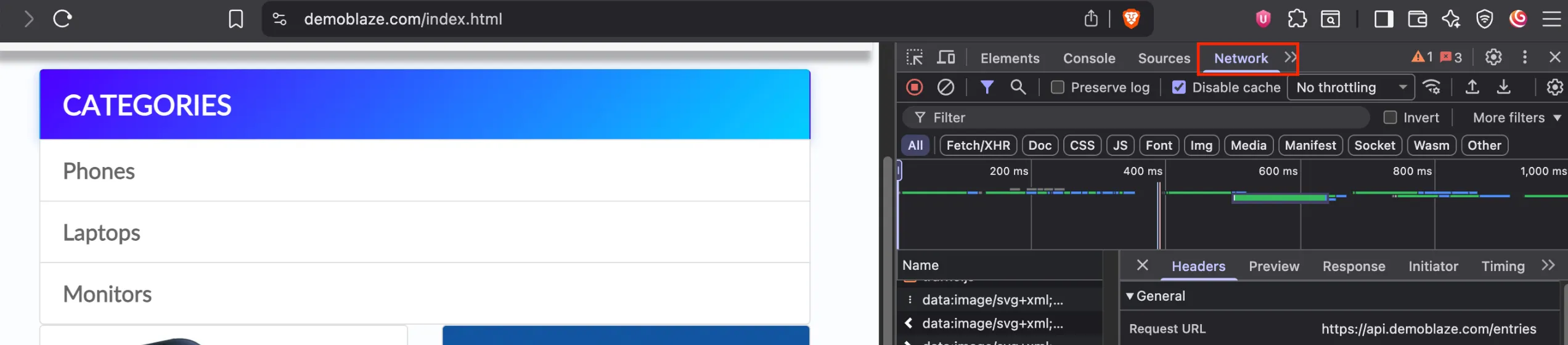
1. Go to the Network tab and locate the endpoint
Open your browser DevTools (F12 or right-click → Inspect), go to the Network tab, and locate the request you want to extract the cURL from.
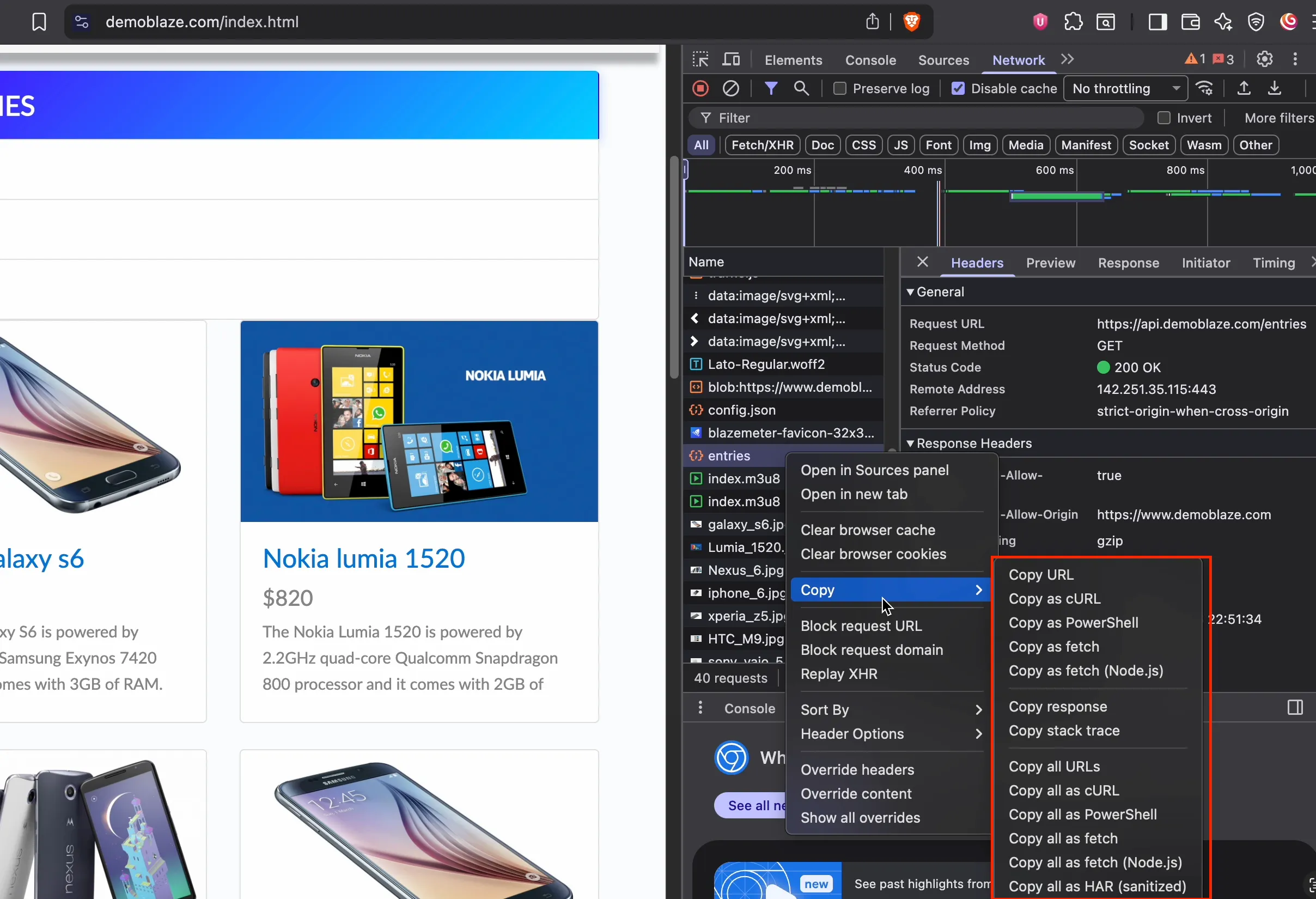
2. Right-click the request → Copy → Copy as cURL
Right-click on the request and select: Copy → Copy as cURL
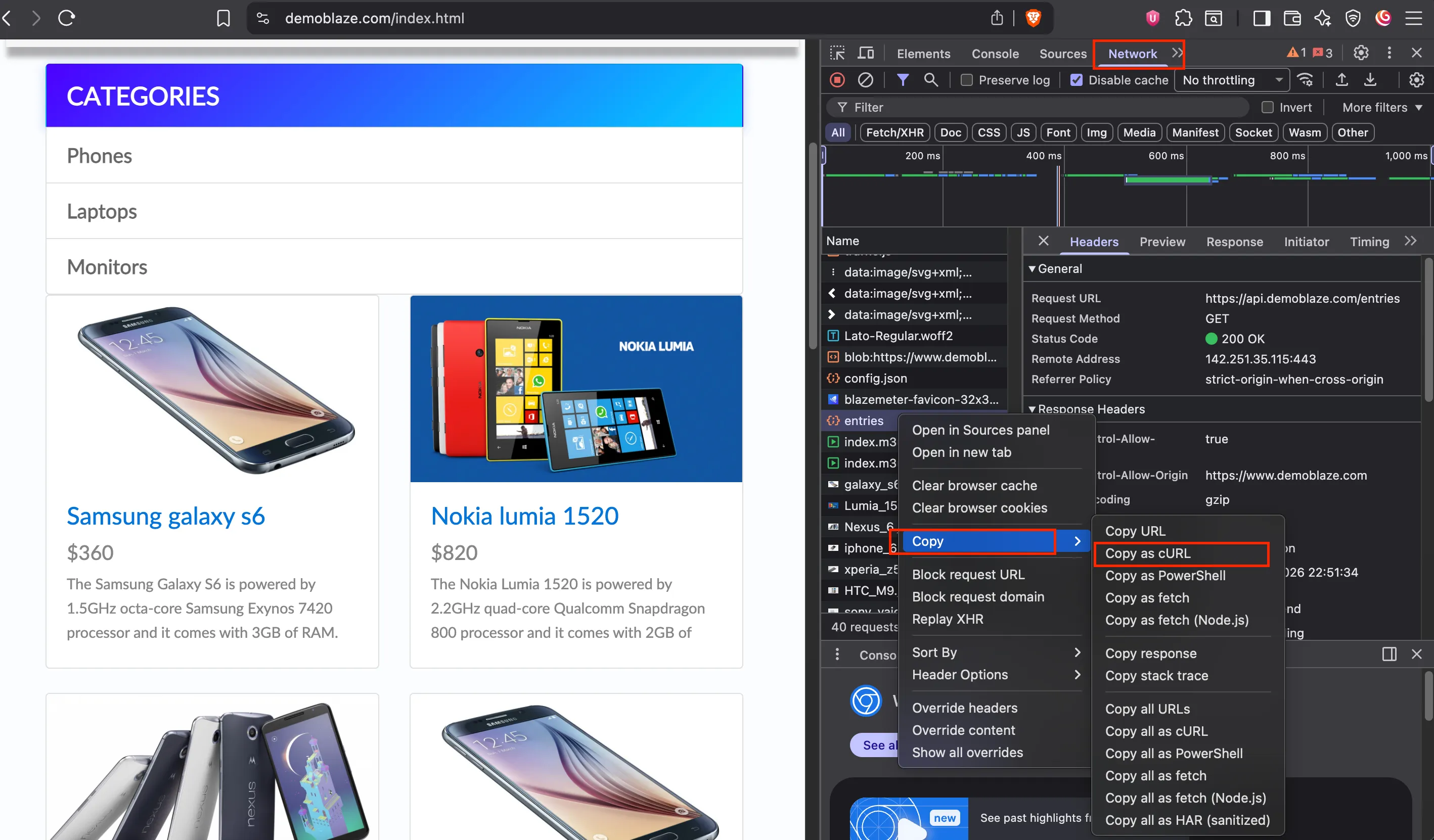
This copies the full request, including:
- Method (GET, POST, etc.)
- Headers
- Cookies
- Authorization tokens (if present)
- Request body (if applicable)
It will be something like this:
curl 'https://api.example.com/users' \
  -H 'Authorization: Bearer your-token' \
  -H 'Content-Type: application/json'
3. Import the cURL into Postman
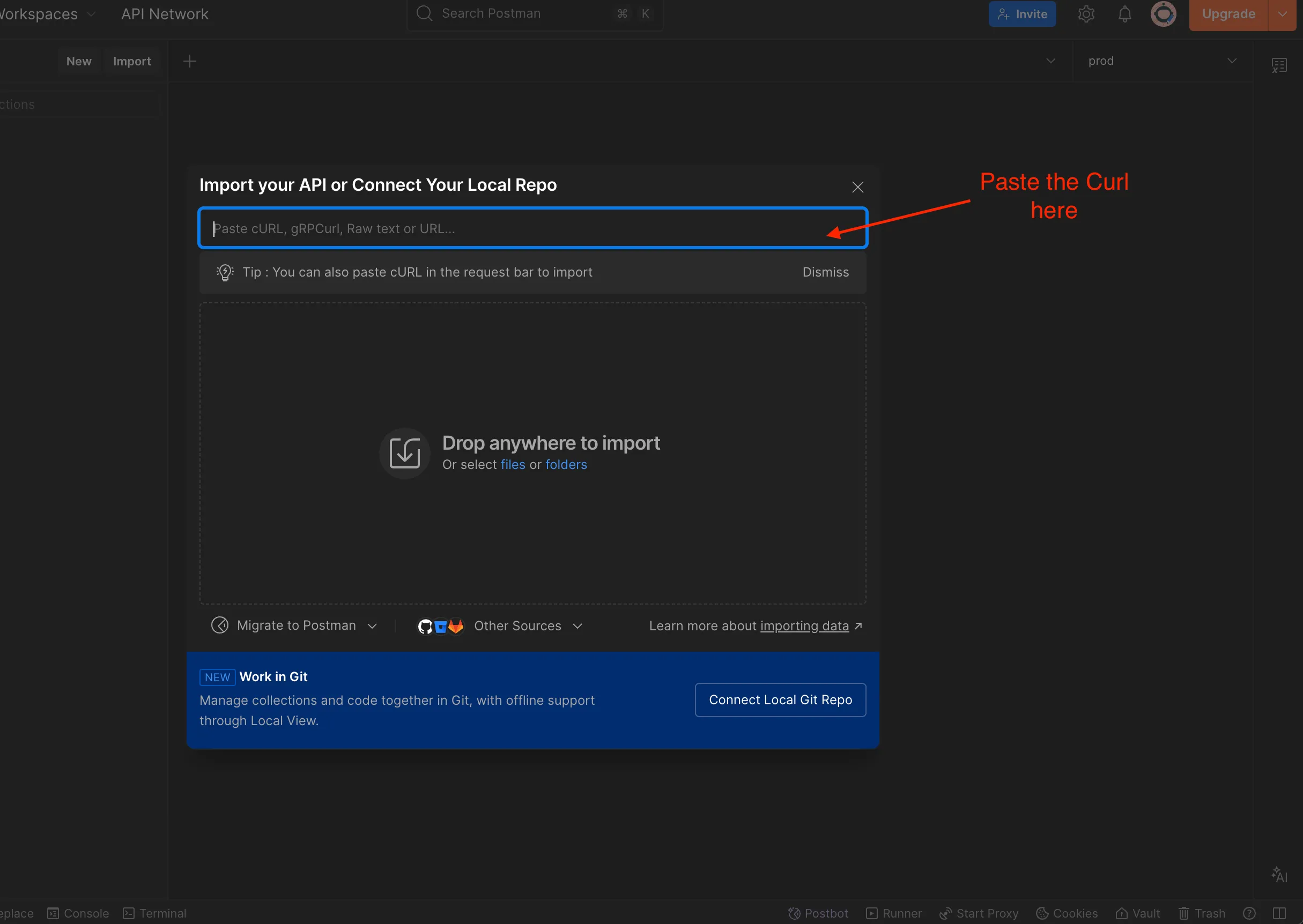
Now go to Postman, click Import, and paste the cURL command.
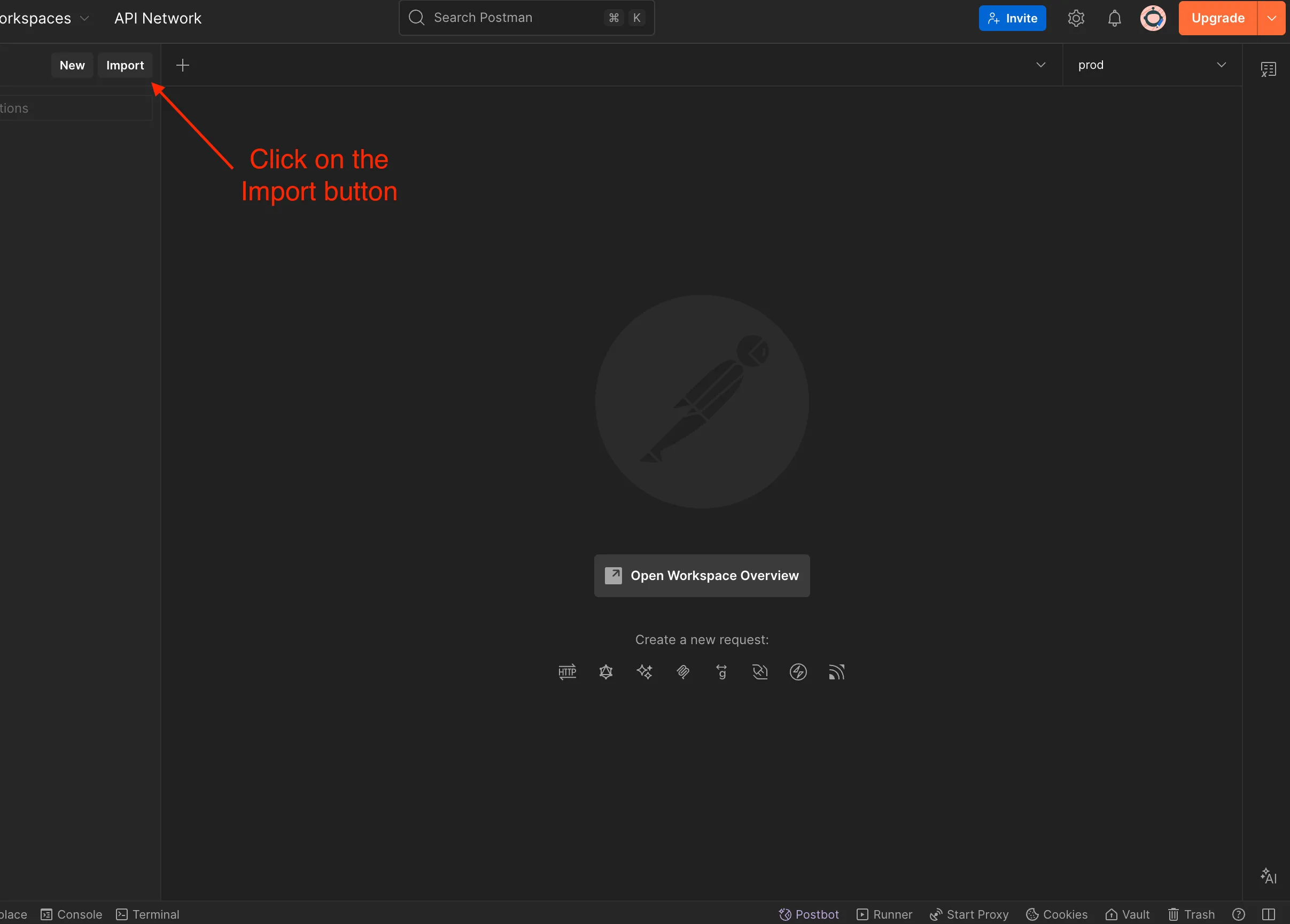
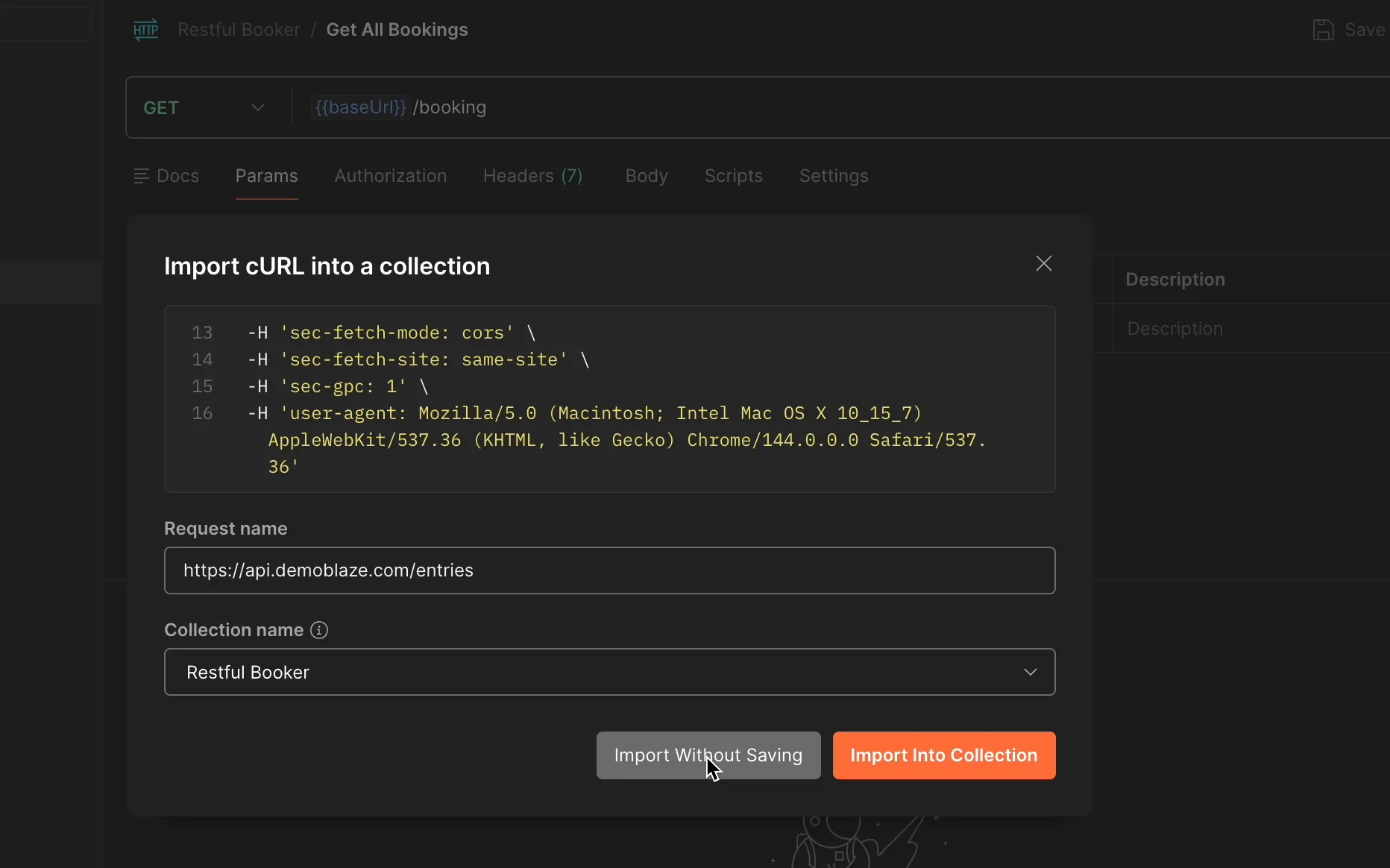
Postman allows you to:
- Save it into an existing collection
- Or use it without saving
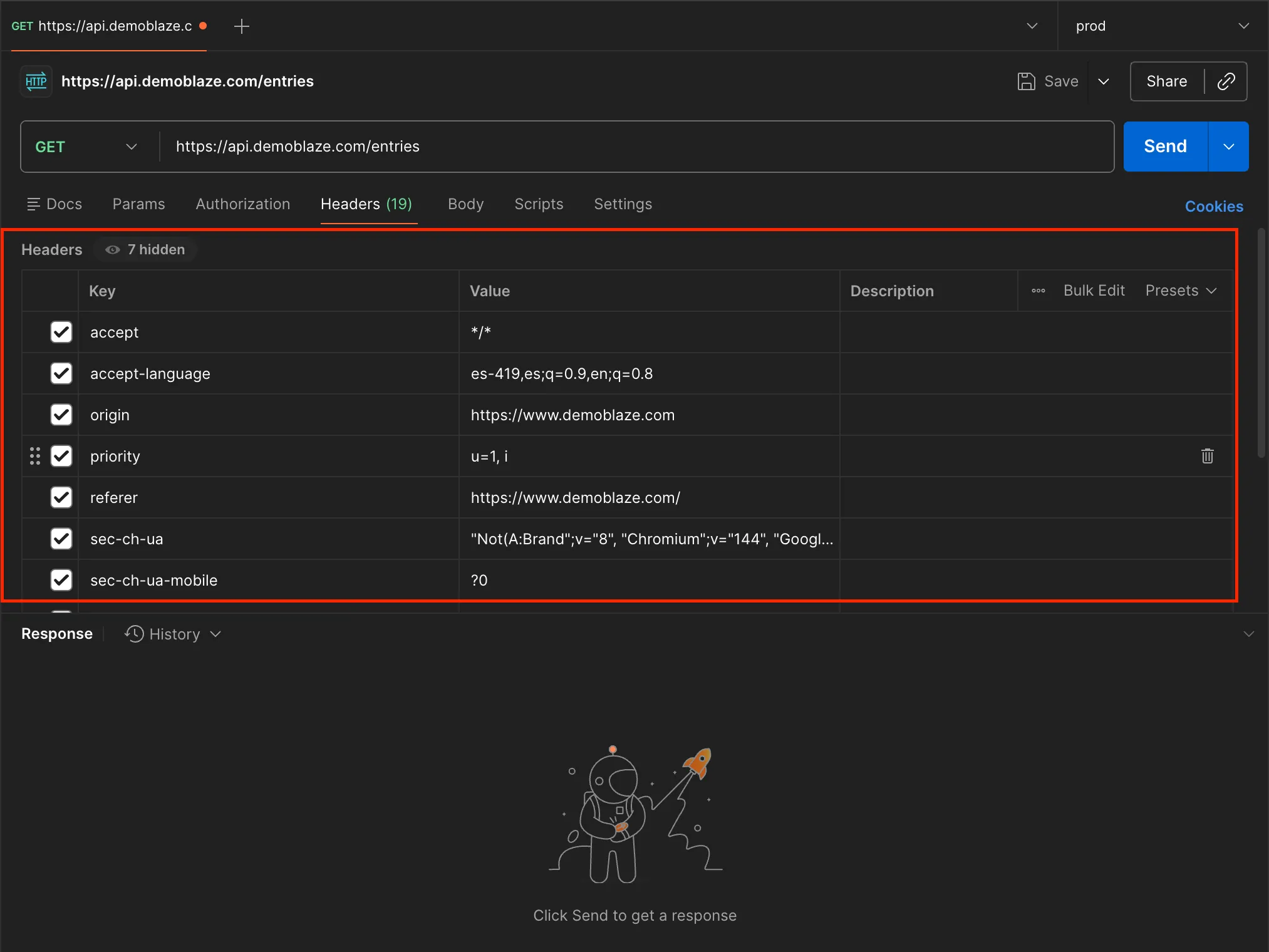
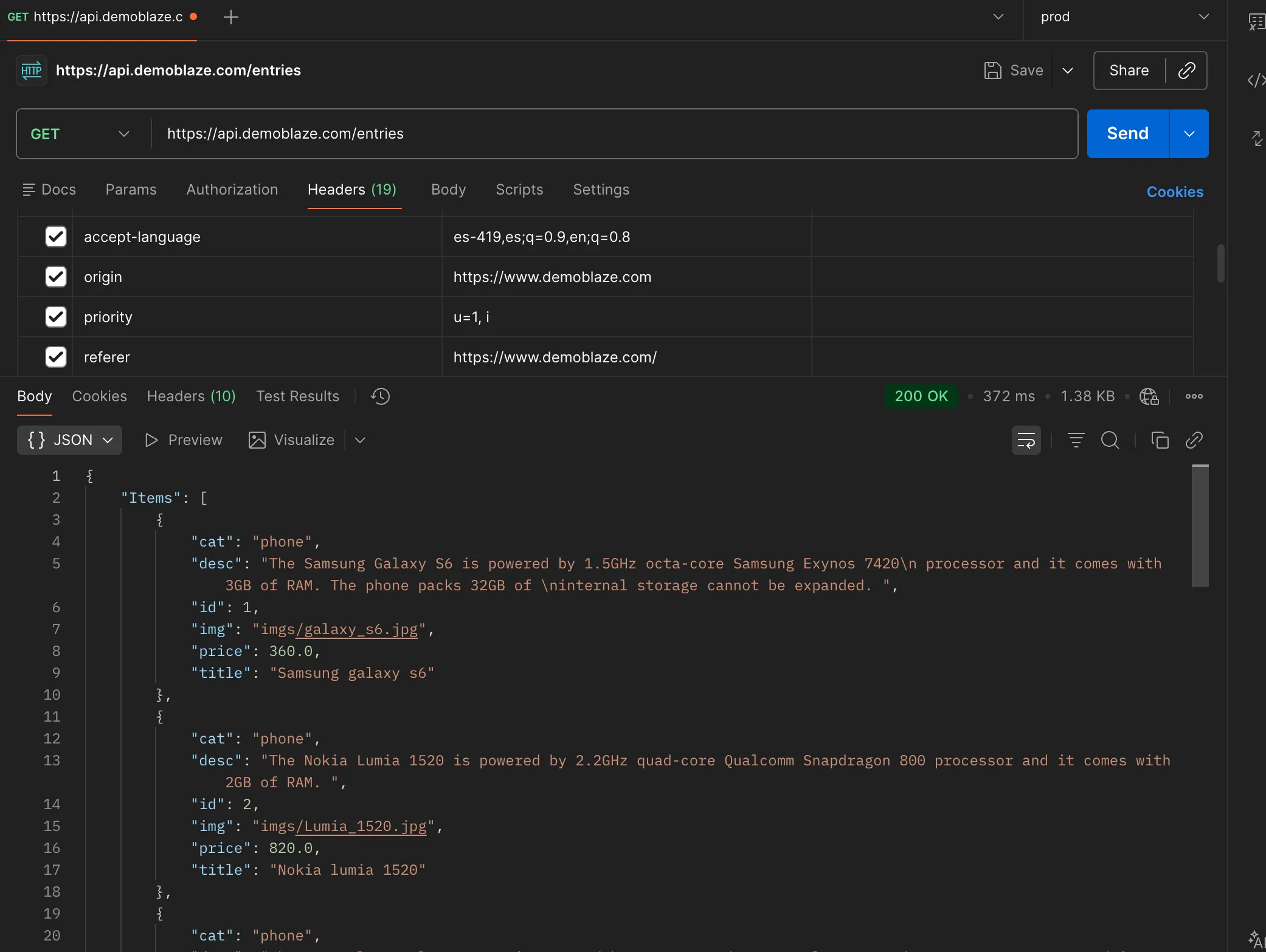
4. Done! Your request is ready to execute
You’ll notice that all important details like headers, authentication tokens, and payload are included automatically.
This makes it incredibly useful for:
- Debugging
- Reproducing bugs
- Sharing requests with teammates
- Quick API validation
Bonus: What else can you copy?
The Copy menu offers several useful options, including:
- Copy URL
- Copy as fetch (Node.js)
- Copy request headers
- Copy response
- Copy stack trace
Depending on what your needs are, these can also save you a lot of time.
Thank you for reading!